
How to send new hires the handbook with Microsoft Entra ID
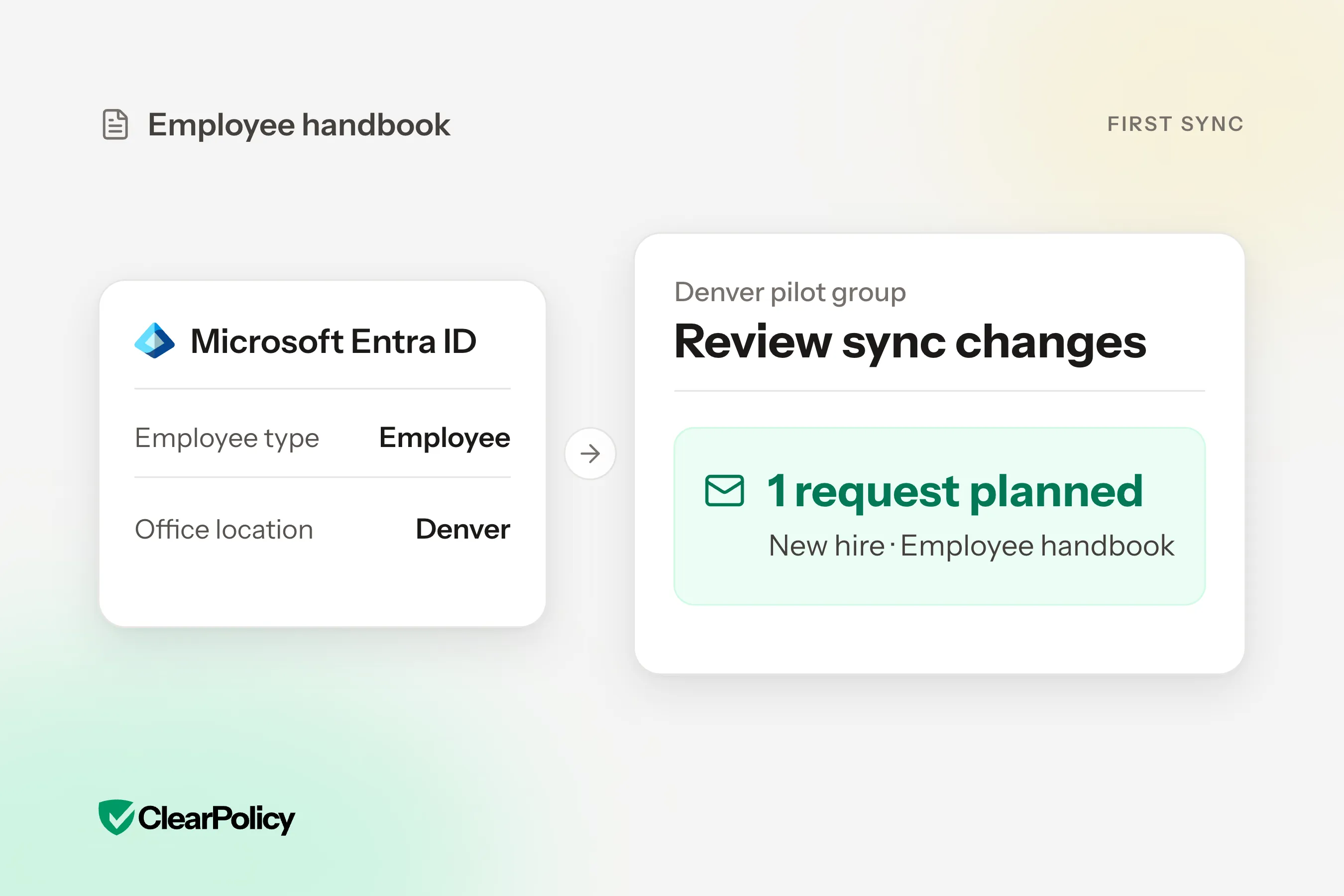
If new hires already get a Microsoft work account, you don’t have to add them again just to send the employee handbook. Microsoft Entra ID (formerly Azure AD) supplies the staff list. ClearPolicy puts people in the groups you choose and can email requests for the policies they need to sign. Before the first sync, you can review who would get a request. Connecting your directory alone doesn’t send anything.
Who gets an email on the first sync?
Say you’re starting with one office. In ClearPolicy, set your sync selection to match both Employee type: Employee and Office location: Denver, using the values your Microsoft directory actually has. Set up a pilot group that includes everyone in that selection. Assign the published handbook the group needs to sign and turn on Automatic request emails.
ClearPolicy uses those profile fields to decide who joins the pilot group; it doesn’t copy your Microsoft group memberships. The first sync can send handbook requests to current employees, not just new hires. Open Review sync changes before applying. Here’s what you’d expect to see:
- A new hire in Denver matches both conditions and hasn’t been assigned the handbook. ClearPolicy plans to send a signature request.
- The new hire’s manager matches too, but already has a pending request for the same handbook through another group. Joining the pilot won’t send a duplicate.
- A Denver contractor matches the office but not the employee type. This sync won’t add them to the pilot or send them the handbook.
After setup, ClearPolicy syncs daily, not the moment you add an account. If a new hire needs the handbook sooner, choose Sync now.
See how People sync works or follow the Microsoft Entra setup guide.
Prove your board acknowledged key policies
Collect signatures from staff, volunteers, and board members — with version history and records you can export.
No credit card required.